You shipped the app. The pages load, the forms work, and nothing looks broken. Then you run a scan and it comes back with a list of findings about headers - and none of it is obvious.
That is a normal first reaction. Headers do not show up on screen, so it is hard to tell whether they matter or whether the scanner is just being fussy. This guide walks through the headers you will see most often, what each one actually does in plain language, and how to check yours without guesswork.
Why headers matter even when your site looks fine
Security headers are instructions your server sends to the browser alongside the page. The browser reads them and adjusts how it handles your content: which scripts may run, whether the page can load over plain HTTP, whether another site can embed it in a frame.
Nothing on the page changes. That is exactly why these findings feel abstract - the site can look and behave perfectly while missing a set of protections that would matter the day something goes wrong.
The honest framing is this: headers reduce a specific class of risk. They do not make a site secure on their own, and a clean header check does not prove a site is fully secure. Think of them as one layer among several, and one of the cheapest layers to get right.
What a security header actually is
When a browser requests a page, your server responds with the page and a block of metadata called response headers. You can see them yourself: open your browser's developer tools, go to the Network tab, reload the page, and click the top request. The headers are right there.
Security headers are simply the ones that tell the browser to enforce a rule. Some are strict, some are advisory, and all of them are set in your server config, your framework, or your hosting platform - not in your HTML.
Content-Security-Policy (CSP)
CSP tells the browser which sources of content are allowed to load on your page. It is the most powerful header here and the one people find most intimidating.
In practice, a CSP spells out things like: scripts may only come from your own domain and one trusted CDN; images may come from anywhere over HTTPS; the page may not be framed by another site. If something tries to load from a source you did not allow, the browser blocks it and logs the attempt in the console.
CSP is an additional defense against script injection, alongside safe output encoding and sanitization. It is also the header most likely to break something if you set it too aggressively. The practical path for a beginner is to start in report-only mode, watch what would have been blocked, fix the real issues, and then enforce it.
Strict-Transport-Security (HSTS)
HSTS tells the browser to only ever talk to your site over HTTPS, for a defined period. Once a browser has seen this header, it will refuse to make an insecure HTTP connection to your domain - even if a user types http:// or follows an old link.
Once the browser knows the HSTS policy, it upgrades HTTP requests before sending them. The first visit can still use HTTP unless the domain is already covered by an HSTS preload entry.
The one thing to respect here is commitment. HSTS is remembered by the browser for as long as you specify, so start with a short duration while you confirm every subdomain works over HTTPS, then lengthen it once you are confident.
X-Frame-Options
X-Frame-Options controls whether another site can load your pages inside a frame - an <iframe> on someone else's page.
Why care? Because framing is the mechanism behind clickjacking, where an attacker overlays your real page with invisible or disguised elements so a user clicks something they did not mean to. If your app has any logged-in action - a delete button, a payment, a settings change - framing it elsewhere is a risk you do not want.
The common setting is SAMEORIGIN, which allows your own pages to frame each other but blocks everyone else. If you never intend to be framed, that is usually the right default.
Referrer-Policy
Referrer-Policy decides how much of your URL is shared with other sites when a user clicks a link away from your page. Modern browsers normally use strict-origin-when-cross-origin: the full URL can be sent on same-origin requests, while cross-origin HTTPS requests receive only the origin. An explicit weaker policy can disclose more.
That matters because full URLs sometimes contain sensitive values in query strings - tokens, IDs, email addresses, search terms. Leaking them to a third party is quiet and easy to miss.
A sensible baseline is to send only the origin, or nothing at all, on cross-site requests. It costs you almost nothing and removes an accidental data leak.
The rest of the practical set
A few more headers come up often enough to know by name:
X-Content-Type-Options: nosniffstops the browser from guessing a file's type, which can otherwise turn an uploaded file into an executable script.Permissions-Policyturns off browser features you do not use, such as camera, microphone, or geolocation.Cross-Origin-Opener-Policyand related cross-origin headers isolate your page from others, which helps contain certain attacks.
You do not need all of them on day one. Knowing what they do helps you read a scan report without panicking.
How to check your headers in a few minutes
You have two ways to look.
First, the manual route: developer tools, Network tab, click the page request, and read the response headers. This is useful for confirming a single header is present and set the way you expect.
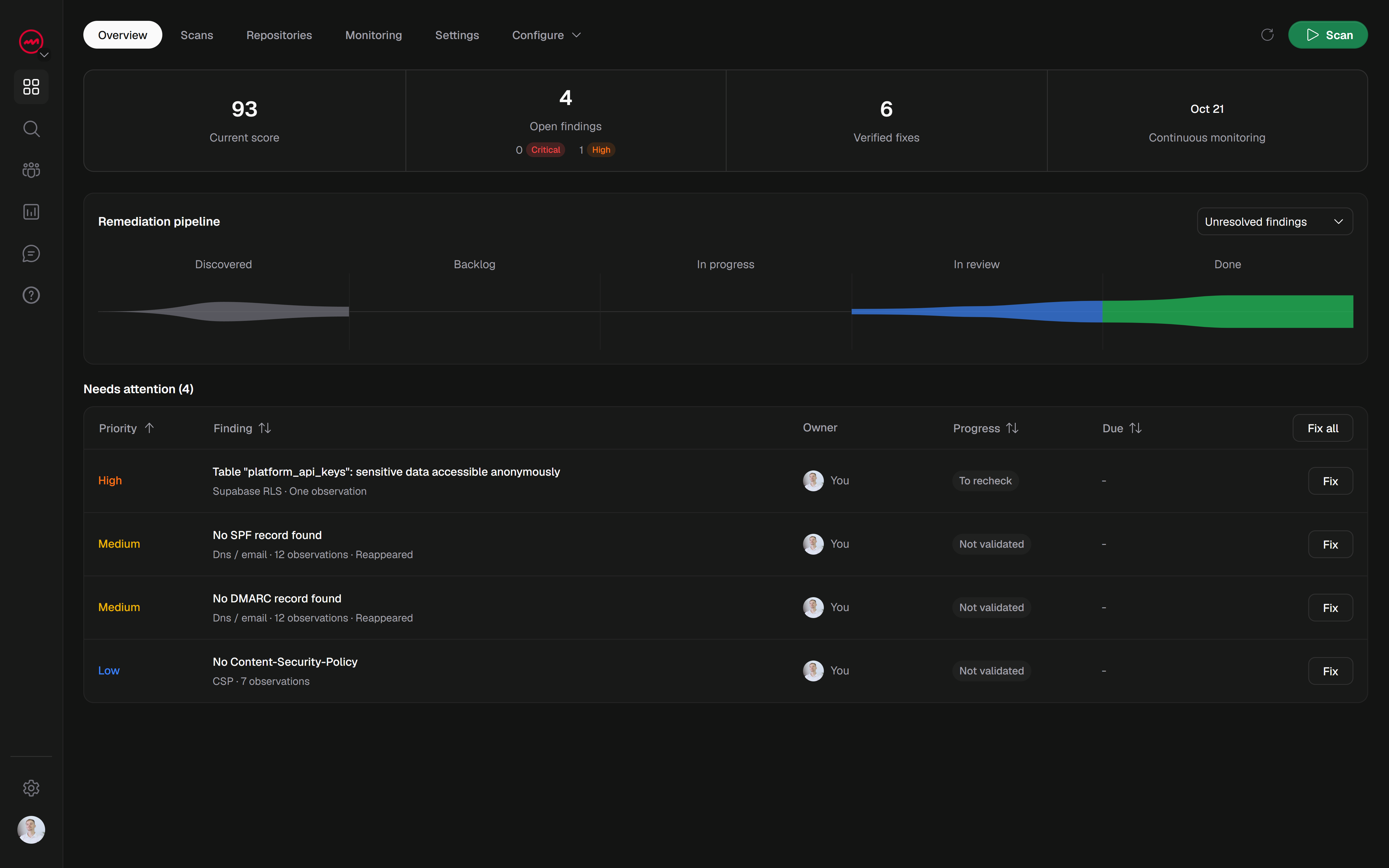
Second, the practical route for more than one page: run a scan. A scanner fetches your site the way a browser would and reports which security headers are present, which are missing, and what each gap exposes. That gives you a prioritized list instead of a wall of raw text - and it checks the pages you would not have thought to open manually.
A general-purpose tool like VICE's free light scan will flag header findings alongside other issues, with the evidence behind each one so you can see why it was raised.
Fix them, then verify with a rescan
Headers live in configuration, so most fixes are small: add a line to your server config, a setting in your framework, or an option in your host's dashboard. Change one header at a time and confirm the site still works.
Then rescan. This is the step people skip. Editing a config does not mean the header is now correct on every page, and marking something as fixed in a dashboard is not the same as confirming it. Only a fresh scan over the same scope tells you the change actually took effect.
Start with a free scan, look at what your headers are really doing, and fix the top findings one at a time. That is a reasonable first pass - and a much better position than hoping the defaults were fine.